
Exporting bank statements to Excel is essential for accounting, bookkeeping, tax returns, expense tracking, and financial analysis. While many banks offer export options, the process — and the quality of the resulting data — varies depending on the bank and statement format.
This guide explains how to export bank statements to Excel for all major banks, covers CSV and PDF exports, and shows how to convert PDF and scanned bank statements into clean Excel, CSV, or JSON files.

How Do Banks Let You Export Statements?
Most banks provide statements in one or more of several formats, each with its own advantages and limitations. The most common format for transaction exports is CSV (Comma-Separated Values). CSV files can be opened directly in Excel, making them convenient for quick analysis. However, these files often require some cleanup, such as adjusting date formats, separating debit and credit columns, or fixing descriptions.
Some banks also allow statements to be downloaded directly as Excel (XLS/XLSX) files. This format is less commonly offered and usually limited to recent transactions. While Excel exports can save time, they sometimes contain formatting inconsistencies that need correction before the data can be used reliably.
Finally, many banks provide statements as PDF files, either digital or scanned. This is the most common format for official statements. PDFs cannot be reliably opened in Excel, and scanned PDFs contain images rather than text, which prevents direct editing. Most banks, however, provide text-based PDFs, which can be converted to Excel or CSV with the right tools.
How to Export Bank Statements to Excel via Online Banking
Most major banks allow you to export recent transactions as CSV or Excel.
General steps
- Log into your online banking account
- Go to Accounts or Transactions
- Select a date range
- Click Export, Download, or Save
- Choose CSV or Excel
- Open the file in Excel (For CSV, follow these steps)
Common limitations
Historical statements may not be available
Closed accounts often cannot be exported
CSV files may have:
- Incorrect date formats
- Combined debit and credit columns
- Broken descriptions
How to Open a CSV Bank Statement in Excel Correctly
If a CSV bank statement does not display correctly in Excel:
- Open Excel
- Go to Data → From Text/CSV
- Select the file
- Choose the correct delimiter (comma or semicolon)
- Confirm encoding (usually UTF-8)
- Import the data
This prevents common issues such as all data appearing in a single column or misaligned amounts.
How to Convert PDF Bank Statements to Excel
Many banks only provide statements as PDF files, especially for:
- Monthly statements
- Archived statements
- Official or regulatory documents
Excel cannot reliably convert PDFs into structured transaction data. Copy-and-paste often results in:
- Missing rows
- Merged columns
- Incorrect balances
Scanned bank statements are even more difficult because they contain no text layer.
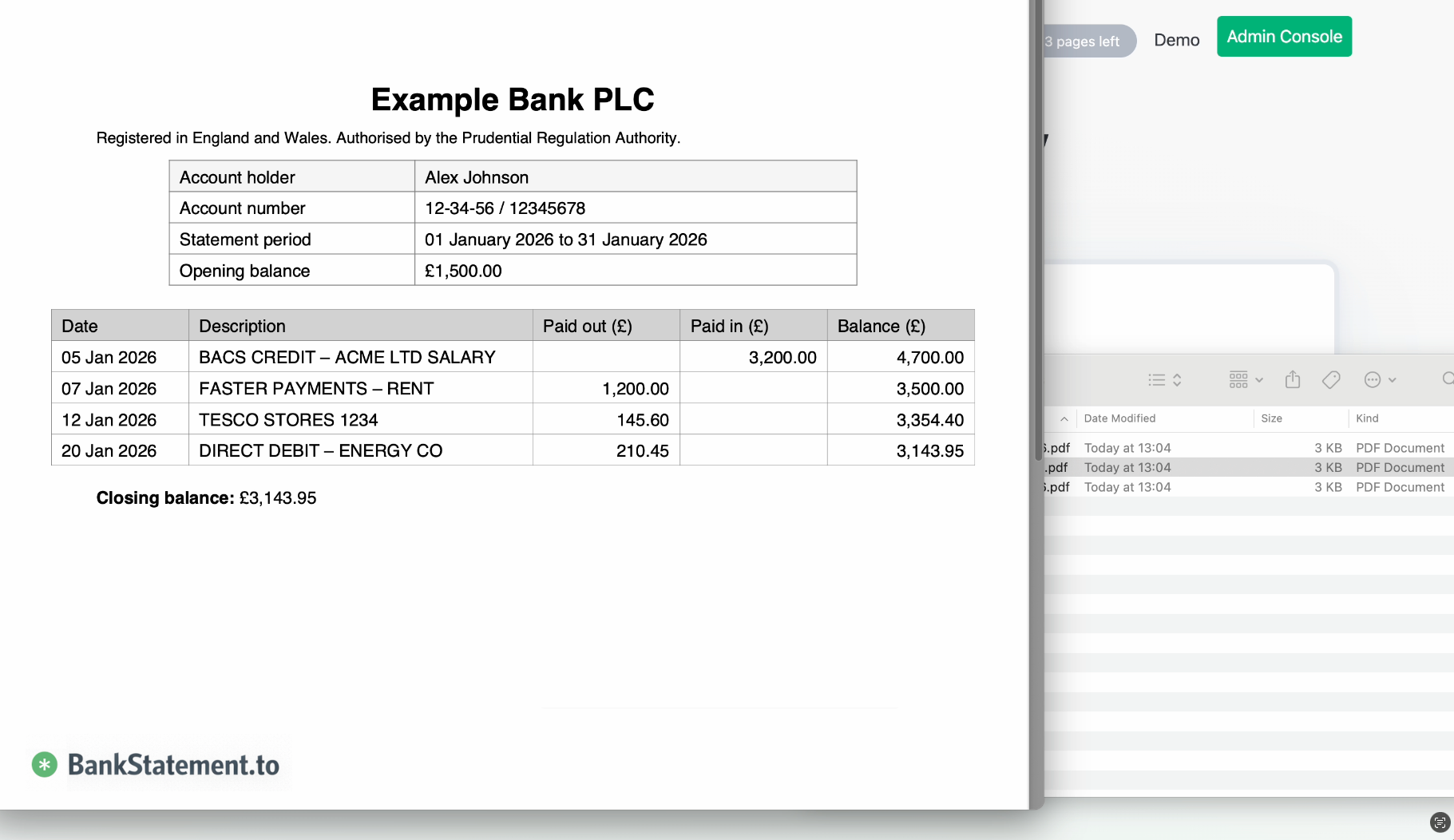
Convert PDF or Scanned Bank Statements Automatically
For PDF and scanned statements, an automated bank statement converter is the most reliable option. BankStatement.to converts bank statements into structured data automatically.
Key features
- Converts PDF bank statements to:
- Excel
- CSV
- JSON
- Supports scanned statements using OCR
- Accurately extracts:
- Transaction dates
- Descriptions
- Debits and credits
- Balances
- Allows column review before export
How it works
- Upload your PDF or scanned bank statement
- Review the extracted transactions
- Adjust columns if required
- Export to Excel, CSV, or JSON
This works even when no CSV export is available from the bank.
Exporting Bank Statements to Excel for Accounting and Tax Use
If you are exporting statements for:
- Accounting software
- Expense tracking tools
- Tax preparation
- Business reporting
You need consistent formatting and clean columns. Automated conversion avoids manual errors and significantly reduces cleanup time in Excel.
Excel vs CSV vs JSON for Bank Statements
| Format | Best use case |
|---|---|
| Excel | Manual review, reports, sharing |
| CSV | Imports, compatibility, large datasets |
| JSON | APIs, automation, developers |
With BankStatement.to, you can export the same statement in multiple formats depending on your workflow.
Frequently Asked Questions
Can I export bank statements to Excel directly from my bank?
Some banks allow direct CSV or Excel exports, usually limited to recent transactions. Older or official statements are often only available as PDFs.
How do I convert a PDF bank statement to Excel?
Excel cannot reliably convert PDFs. Use a dedicated bank statement converter like BankStatement.to to extract structured data.
Can scanned bank statements be converted to Excel?
Yes. OCR-based tools can convert scanned statements into Excel, CSV, or JSON.
Summary
- Online banking exports are often limited and inconsistent
- CSV files may require manual cleanup
- PDF and scanned bank statements cannot be reliably converted using Excel alone
- Automated conversion saves time and reduces errors
If you need to export PDF or scanned bank statements to Excel, BankStatement.to provides a fast, accurate way to convert statements into Excel, CSV, or JSON, ready for analysis, accounting, or import into other systems.